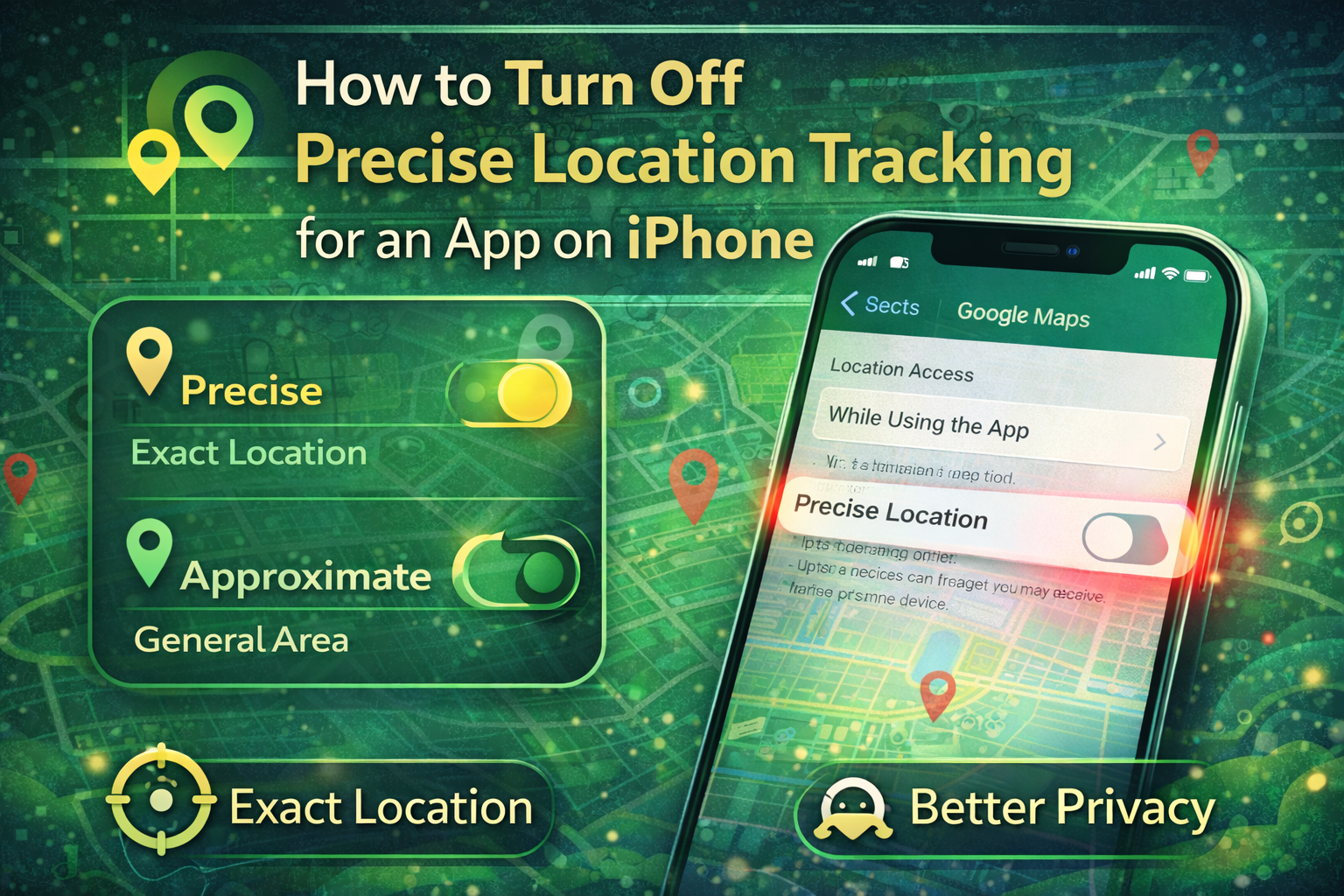
Apple has significantly improved privacy controls in recent versions of iOS, giving users more control over how apps access their location data. One of the most useful features introduced in iOS 15 and later is the option to share approximate location instead of precise location with apps.
Many apps only require a general area to function properly, such as weather apps or food delivery services. However, some apps request precise location access, which can reveal your exact position, including building or street-level details. Over time, users may grant these permissions and forget which apps have access to their exact location.
If you want to protect your privacy and control which apps can see your exact location, you can easily disable precise location tracking from your iPhone’s settings.
Below is a step-by-step guide explaining how to check and turn off precise location access for apps on your iPhone.
What Is Precise Location on iPhone?
Precise location is a setting that allows apps to access your exact geographic location using GPS, Wi-Fi, and cellular data.
When precise location is enabled, apps can determine:
- The exact building you are in
- Your street or house location
- Your real-time movement
While this information can improve certain services like navigation or ride-hailing apps, it also raises privacy concerns if unnecessary apps have access to it.
Why Apple Introduced Approximate Location
To improve user privacy, Apple introduced Approximate Location as an alternative to precise location sharing.
With approximate location enabled, apps only receive a rough estimate of your location, typically within a few kilometers. This means the app knows the general area but cannot pinpoint your exact position.
This feature allows apps to work normally while keeping your precise location private.
Steps to Turn Off Precise Location Tracking for Apps on iPhone
If you want to stop apps from accessing your exact location, follow these steps:
- Open the Settings app on your iPhone.
- Scroll down and tap Privacy & Security.
- Select Location Services.
- Scroll through the list and choose the app you want to review.
- Locate the Precise Location toggle at the bottom of the screen.
- Turn off the Precise Location switch.
Once disabled, the selected app will only receive approximate location information instead of your exact location.
How to Completely Disable Location Access
If you do not want an app to access your location at all, you can change the permission setting.
Inside the same app location settings, you can select:
- Never – The app will not access your location
- While Using the App – Location access is allowed only when the app is open
- Ask Next Time – The app will request permission each time
Choosing the appropriate setting helps you maintain control over your personal data.
When Precise Location Should Remain Enabled
Although disabling precise location improves privacy, some apps require exact location data to function properly. These include:
- Navigation apps
- Ride-hailing services
- Food delivery apps
- Emergency services
If precise location is turned off for these apps, certain features may not work accurately.
Precise Location vs Approximate Location: Key Difference
| Feature | Precise Location | Approximate Location |
|---|---|---|
| Accuracy | Exact location | General area only |
| Privacy | Lower privacy | Higher privacy |
| Use case | Navigation, rides, deliveries | Weather, news, nearby recommendations |
Managing location permissions is an important step toward protecting your digital privacy. Apple’s precise location control allows users to decide which apps can access their exact location and which ones should only receive approximate data.
By reviewing and adjusting location permissions in your iPhone settings, you can maintain better control over how your personal location information is shared with apps.