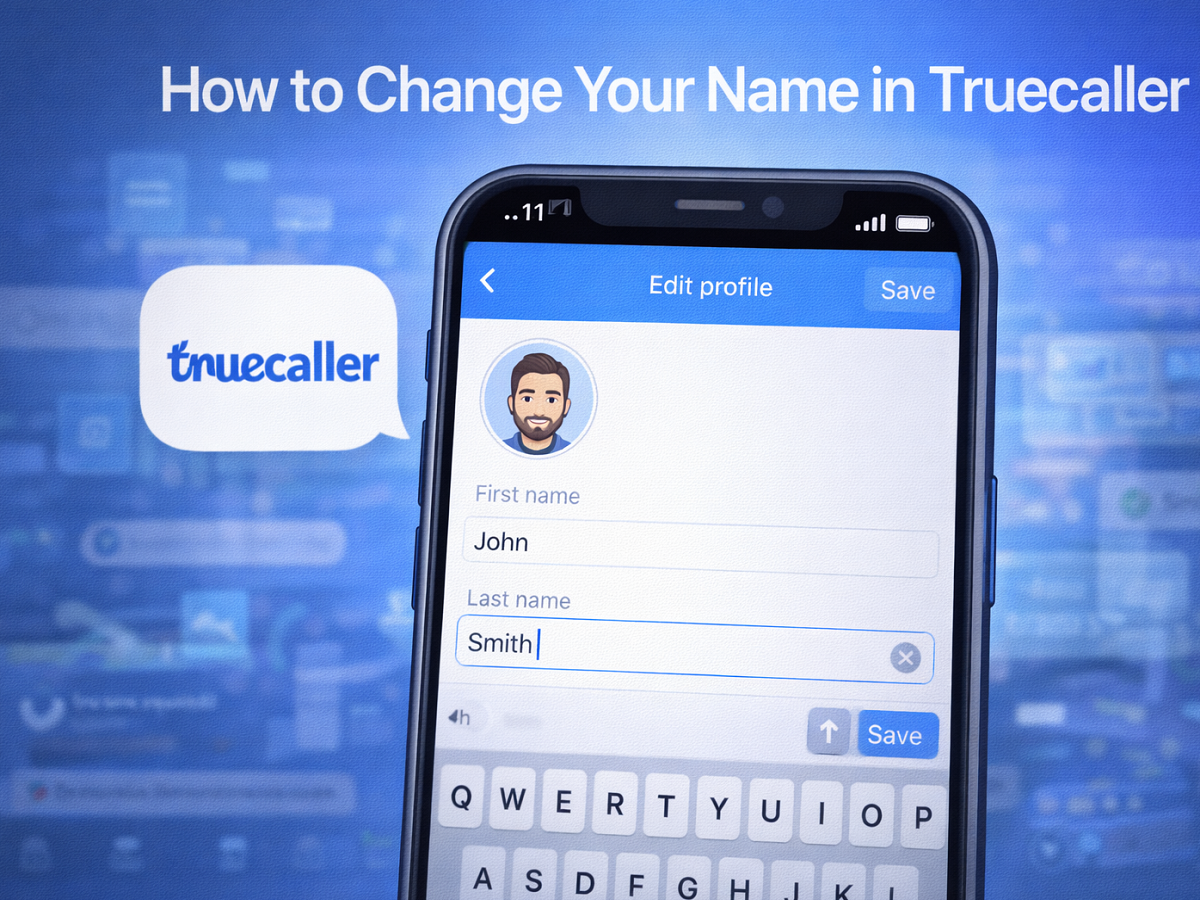
Keeping your personal details accurate on caller identification platforms is essential, especially when millions rely on them to identify unknown numbers. If your name appears incorrectly on Truecaller, you can easily update or correct it using a few simple steps. Whether you are using an Android device or an iPhone, the process is straightforward and takes only a few minutes.
Here’s a complete and easy-to-follow guide on how to change or edit your name on Truecaller.
What Is Truecaller and Why Your Display Name Matters
Truecaller is widely known for its caller ID and spam-blocking capabilities. Over time, it has expanded its services to include messaging, voice calls, flash messaging, and even UPI-based money transfers in certain regions. The app helps users identify unknown callers, block spam calls, and access details linked to unfamiliar phone numbers.
Because the platform works on a large database built through user contributions and public data, there may be instances where your name appears incorrectly. If that happens, updating your display name ensures accurate identification when others search for or receive calls from your number.
How to Edit Your Name on Truecaller (For Existing Users)
If you already use the app, updating your profile name is quick and simple. Follow the steps below based on your device type.
For Android Users
- Open the Truecaller app on your Android smartphone.
- Tap the profile icon located in the top-left corner of the screen.
- Select the “Edit Profile” option.
- Update your name with the correct details.
- Save the changes.
Once saved, your new name will be updated in your profile. However, it may take some time for the changes to reflect publicly.
For iPhone Users
- Launch the Truecaller app on your iPhone.
- Tap the profile icon in the top-left corner.
- Select “Edit Profile.”
- Enter your correct name.
- Save the updated information.
The steps are nearly identical for both platforms, making it easy for users to manage their profile details.
What If You Don’t Use Truecaller?
If you have not installed the app but still notice an incorrect name linked to your number, you can suggest corrections through the official website.
Steps to Suggest a Name Correction
- Visit the official Truecaller website.
- Enter your mobile number in the search bar.
- Locate your profile listing.
- Click on “Suggest a Better Name.”
- Provide the correct name details and submit.
The platform typically reviews and updates suggested corrections within one to two days.
How Long Does It Take for Changes to Reflect?
After editing your name, it may take approximately 24 to 48 hours for the update to appear across the system. The delay usually occurs because the platform refreshes and syncs data periodically.
If the updated name does not appear:
- Ensure your app is updated to the latest version.
- Restart your device.
- Clear the app cache (Android users only).
Clearing Cache on Android
- Open Phone Settings.
- Go to Apps.
- Select Truecaller.
- Tap “Storage.”
- Choose “Clear Cache.”
This can help remove old stored data and refresh your profile details.
Important Things to Keep in Mind
- Make sure you enter your real and accurate name.
- Avoid using special characters or misleading information.
- Updates may not reflect instantly due to data synchronization.
- If issues persist, consider contacting Truecaller support through the app.
Why Updating Your Name Is Important
Accurate identification builds trust. When your correct name appears during calls, it reduces confusion and improves credibility. For professionals, business owners, and freelancers, maintaining accurate details on caller ID platforms is especially important.
Truecaller continues to improve its services and user experience, giving individuals better control over how they appear in the global caller database.
Changing or editing your name on Truecaller is a quick process whether you are using Android or iOS. With just a few taps inside the app — or a correction request through the website — you can ensure your contact information is displayed correctly.
Keeping your profile updated helps others identify you accurately and enhances your overall calling experience.