LIFESTYLE
WhatsApp Chat Passkey: Your WhatsApp Chats and Memories Will Never Be Deleted, Here's How to Set Up a 'Passkey' for Encrypted Backups..
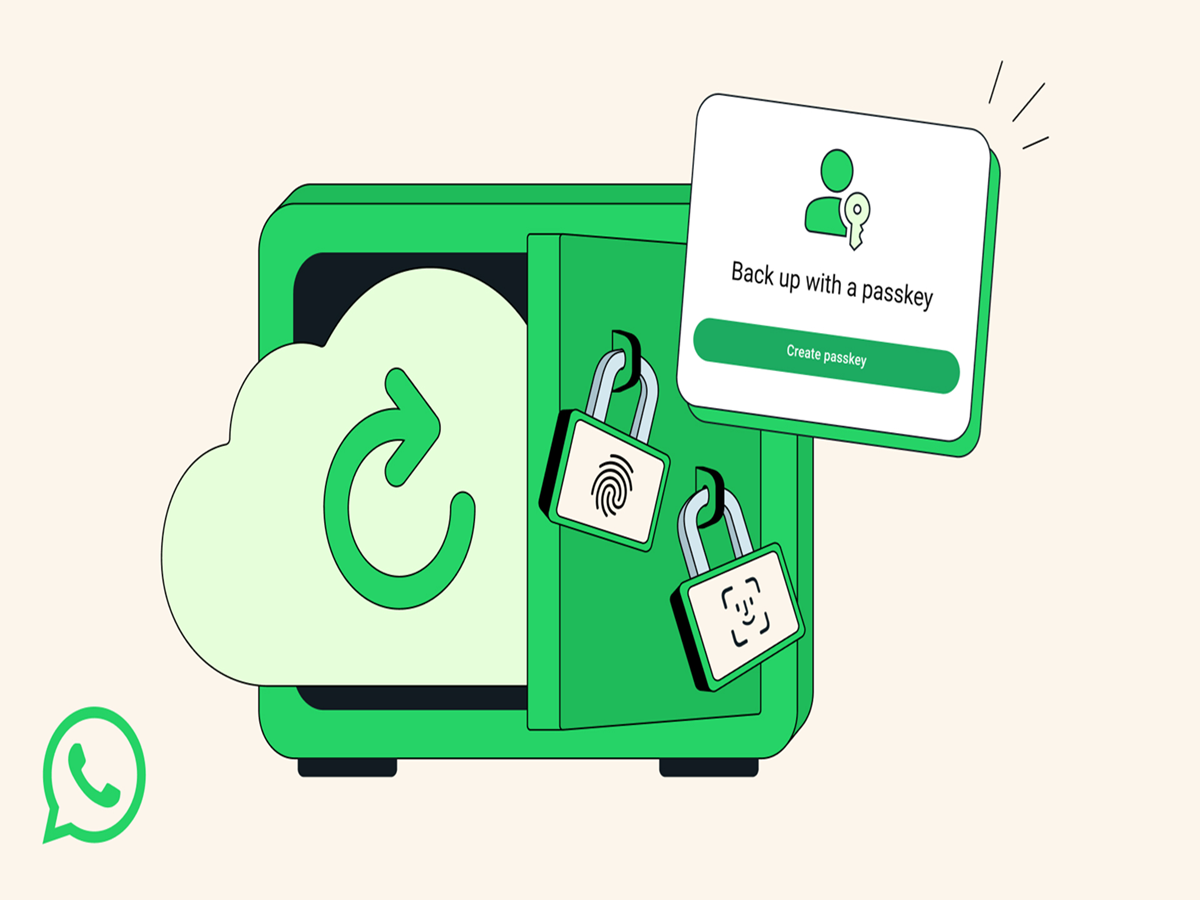
Have you ever wondered what it would feel like if years' worth of your WhatsApp chats, photos, and voice notes were deleted in a single instant? It would truly be a terrifying experience—especially if you didn't have a backup. We all want to keep our precious memories and important conversations safely preserved at all times. In this context, safeguarding your WhatsApp data is absolutely crucial. The best and easiest way to do this is through a passkey-encrypted backup. This not only keeps your data private but also makes it incredibly easy to recover whenever you need it. Let's find out how it works.
**What is a Passkey?**
Simply put, a passkey is a security tool that eliminates the need to remember complex passwords or lengthy 64-digit codes to keep your chats secure. You can protect your backups using nothing more than your fingerprint or facial recognition. On Android phones, this passkey is securely stored within the 'Google Password Manager.' This means that no one—other than you—can access your chat backups.
**Requirements for Using Passkeys**
To utilize this feature, your smartphone must meet a few basic requirements. First, your phone must be running on Android 9 or a newer version. Additionally, the Google Mobile Services installed on your device must be updated to version 241217000 or higher. Most importantly—for security purposes—it is mandatory to have an existing screen lock (such as a PIN, pattern, or password) already set up on your phone.
**How to Enable Passkey Backups on WhatsApp (Step-by-Step Guide)**
Enabling this feature is very simple. Just follow these steps:
First, open the WhatsApp settings on your phone.
Tap on 'Chats,' then navigate to the 'Chat backup' option.
Here, tap on 'End-to-end encrypted backup.'
Now, tap the 'Turn On' button. Create your passkey by following the on-screen instructions. (Note: If you prefer, you can also choose the older options—using a password or a 64-digit key—from this screen).
And just like that, you're done. As soon as this feature is enabled, your backup will be completely secure in the cloud.
How to switch from an old password to a passkey?
If you are currently using a password or a 64-digit key for your backup, you must first disable that legacy encryption to switch to a passkey. First, turn off the old encryption, and then follow the steps outlined above to re-enable the backup using a passkey.
How to turn off encrypted backups?
If you ever wish to remove this encrypted protection, it can be done quite easily. To do so, simply go to your WhatsApp Settings, open the 'Chats' section, and navigate to 'Chat Backup.' Next, tap on the 'End-to-end encrypted backup' option. Finally, simply click on 'Turn Off' and follow the on-screen instructions to confirm your choice.
The Most Important Point
If you forget or lose your passkey, password, or encryption key, you will never be able to restore your backup. Neither WhatsApp nor any other app can recover or reset this password on your behalf. Therefore, always ensure you keep it stored securely on your phone.
PC Social Media