
YouTube has grown far beyond a simple video-sharing website. Today, it serves as a major entertainment, education, and information platform used by billions of people worldwide. From tutorials and news updates to music and short-form content, YouTube offers a wide variety of videos to suit every interest.
However, with such a vast amount of content available, users may sometimes encounter channels or videos they would rather not see in their recommendations. Whether the content is irrelevant, repetitive, or simply not of interest, YouTube provides a simple feature that allows users to prevent videos from specific channels appearing in their feed.
Fortunately, the platform includes tools that help users customise their viewing experience by controlling what appears in their recommendations. By blocking or restricting a channel from recommendations, users can ensure that content from that channel no longer shows up in their YouTube homepage or suggested video list.
Here’s a detailed guide explaining how to block or hide content from a YouTube channel.
Why You Might Want to Block a YouTube Channel
YouTube’s recommendation system is designed to suggest videos based on your viewing habits. While this usually works well, there are times when users might want to remove certain channels from their feed.
Some common reasons include:
- Avoiding irrelevant or repetitive content
- Preventing clickbait videos
- Blocking spam or low-quality channels
- Creating a cleaner and more personalised homepage
By blocking a channel from recommendations, YouTube’s algorithm will stop suggesting videos from that creator.
How Blocking a Channel Works on YouTube
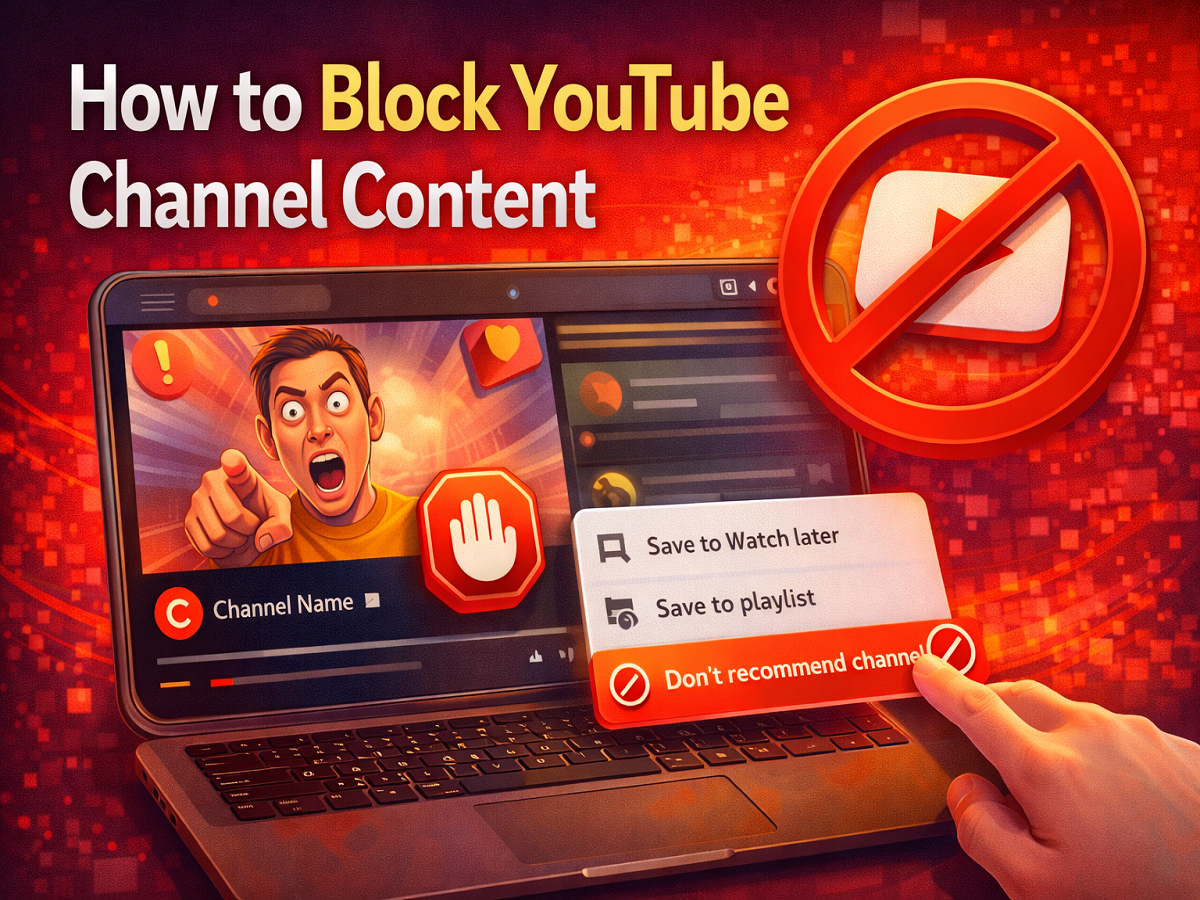
YouTube does not provide a traditional “block” button for channels in recommendations. Instead, users can use the “Don’t recommend channel” option.
When this option is selected:
- Videos from that channel will no longer appear in your recommendations
- The channel’s Shorts and regular videos will be hidden from your feed
- YouTube will adjust future recommendations accordingly
However, it’s important to note that this action mainly affects your recommendations. You can still manually search for the channel if needed.
Step-by-Step Guide to Block a YouTube Channel
If you want to stop seeing videos from a particular YouTube channel, follow these steps.
Step 1: Open YouTube
Launch the YouTube app on your smartphone or open YouTube.com in your web browser.
Step 2: Find a Video From the Channel
Scroll through your homepage or recommended videos until you find a video from the channel you want to block.
Step 3: Open the Options Menu
Tap or click on the three-dot menu icon located next to the video title.
Step 4: Select “Don’t Recommend Channel”
From the options list, choose “Don’t recommend channel.”
Once you select this option, YouTube will immediately remove that channel’s content from your recommended feed.
Undo Option After Blocking a Channel
If you accidentally block a channel, YouTube briefly displays an Undo option.
By clicking or tapping Undo, you can reverse the action and allow recommendations from that channel again.
However, after this short window passes, restoring the recommendations may become difficult.
Additional YouTube Controls for Safer Viewing
Apart from blocking recommendations from channels, YouTube also offers other features to manage your viewing experience.
These include:
- Blocking or reporting spam comments
- Managing content preferences
- Using Restricted Mode for safer viewing
- Setting up parental controls through YouTube Kids
These tools help users create a safer and more personalised viewing environment.
YouTube’s recommendation system is powerful, but sometimes it may show videos that don’t match your interests. Thankfully, the platform offers a quick way to remove unwanted channels from your recommendations.
By using the “Don’t recommend channel” option, users can customise their homepage feed and avoid content they do not want to see.
This simple feature helps ensure that your YouTube experience remains relevant, enjoyable, and tailored to your preferences.