LIFESTYLE
Google Account Security 2026: How to Check Which Apps Can Access Your Gmail and Google Drive
Meta Description: Find out which third-party apps have access to your Google Account, Gmail and Google Drive. Follow these steps to review permissions, remove unwanted access and improve account security.
Google Account Security Tips 2026: Many people use their Google Account to sign in to websites and applications instead of creating separate usernames and passwords. The Sign in with Google feature makes registration convenient, but over time, several third-party services may remain connected to an account even after users stop using them.
Some applications only use Google for authentication, while others may request permission to access Gmail, Google Drive, Contacts, Calendar or other account information.
According to a Gadgets Now report, Google provides a dedicated account management section where users can review connected applications, examine permissions and remove access that is no longer required.
The process can be completed through a web browser without installing an additional application.
Why Should You Check Apps Connected to Your Google Account?
Whenever you connect a third-party application to your Google Account, you may authorize it to access certain information.
The type of access depends on the application and the permissions you approve.
For example, a website may only need your name, email address and basic profile information to create an account.
However, a productivity application might request permission to access Google Calendar events or files stored in Google Drive.
Some permissions may allow applications to read, create, modify or delete information within the authorized scope.
Regularly reviewing these connections helps you identify applications you no longer use and permissions that may be unnecessary.
How to Check Which Apps Are Connected to Your Google Account
Google provides an official page for reviewing third-party connections.
Follow these steps:
- Open a web browser on your smartphone or computer.
- Visit https://myaccount.google.com/linkedapps.
- Sign in to your Google Account if required.
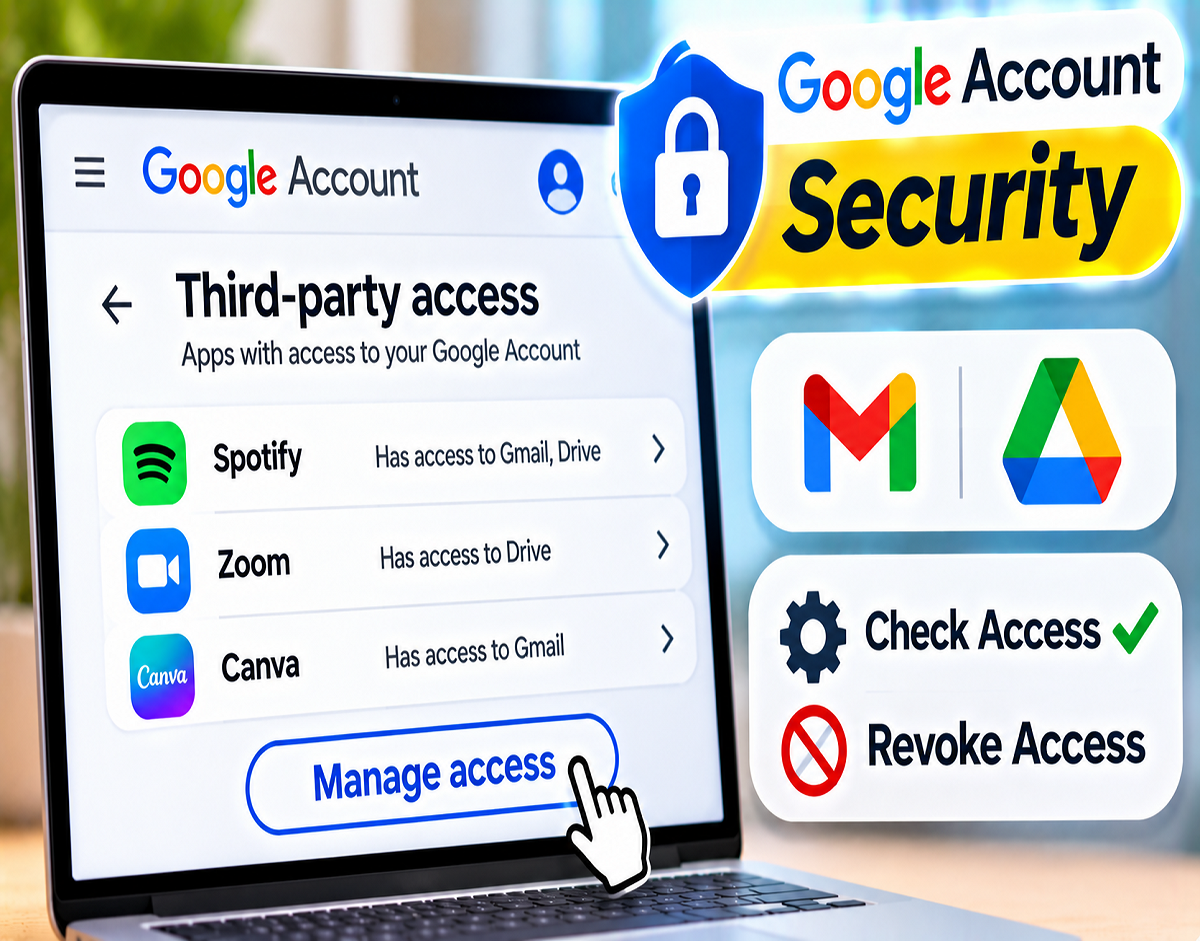
- Review the list of connected third-party applications and services.
- Select an application you want to examine.
- Open its connection details.
- Check what information or services the application can access.
- Identify unfamiliar or unused applications that may no longer require access.
This section helps users understand which external services are associated with their Google Account.
The exact labels and available controls may vary depending on the connection type.
How to Find Connected Apps Through Google Account Settings
You can also access third-party connection settings through your Google Account dashboard.
Open your Google Account settings and navigate to the Security or Security and sign-in section.
Look for the option related to third-party connections.
From there, you can review linked applications and their available permissions.
Google occasionally changes its interface, so the names and locations of these settings may differ between devices.
How to Check Whether an App Can Access Gmail or Google Drive
Not every application connected to your Google Account has access to your emails or stored documents.
To identify the permissions granted to a particular service, select the application from the third-party connections list.
Review the information displayed under its access details.
For example, a photo-related application might request access to certain Google Photos features.
A productivity application could require permission to work with Google Drive files or Calendar events.
Pay particular attention to applications that can access sensitive information, including Gmail messages, personal documents or contact details.
If an application requests more information than appears necessary for its purpose, consider whether the connection should remain active.
How to Remove Third-Party App Access From Your Google Account
If you no longer use an application or do not want it connected to your Google Account, you can remove the relevant connection.
Step-by-step process:
- Visit https://myaccount.google.com/linkedapps.
- Sign in to your Google Account.
- Select the application or website you want to disconnect.
- Review its connection details and permissions.
- Choose Remove access, Delete connection or the equivalent available option.
- Confirm your decision if prompted.
The exact wording depends on the type of connection.
Once the relevant authorization is revoked, the application should no longer be able to use those Google Account permissions.
However, some features of the disconnected application may stop working.
Does Removing App Access Delete Previously Shared Data?
No. Removing a third-party application's access does not automatically delete information that the service previously collected or stored.
For example, if an application downloaded certain account information while it had permission, that data may remain on the company's servers after you disconnect it.
To request deletion of previously collected information, review the third-party service's privacy settings, data deletion options or account closure procedure.
You may also need to contact the service provider directly.
This distinction is important because revoking access prevents future authorized access through the removed connection but does not necessarily erase historical copies of data.
Sign in with Google vs Google Account Access: What's the Difference?
Google Account connections can serve different purposes.
| Connection Type | Purpose | Possible Effect of Removal |
|---|---|---|
| Sign in with Google | Allows authentication on another website or application | Google-based sign-in may stop working |
| Access to Your Google Account | Grants permission to use selected Google information or services | Authorized access is revoked |
| Linked Accounts | Connects a Google Account with another service | Connected features may stop functioning |
Understanding the connection type helps you decide whether removing it is appropriate.
Will Removing Sign in with Google Delete Your Account on Another Website?
Not necessarily.
If you created an account on another website using Sign in with Google, removing the Google connection generally does not automatically delete that website's separate account.
However, you may lose the ability to sign in through Google.
Before disconnecting an important service, check whether it supports another login method, such as a password or passkey.
Otherwise, you could temporarily lose access to the service even though your account still exists.
Which Apps Should Have Access to Gmail and Google Drive?
Gmail and Google Drive can contain personal, financial and professional information.
Therefore, access to these services should be granted only when necessary.
For example, if a basic gaming application requests permission to read Gmail messages, users should carefully consider why that level of access is required.
Similarly, an application that only needs basic account authentication may not require broad access to Google Drive.
Reviewing permissions and limiting unnecessary access can reduce the exposure of sensitive information.
How to Check Devices Signed In to Your Google Account
Reviewing third-party applications is only one part of Google Account security.
You should also check which devices are signed in to your account.
To review connected devices:
- Open your Google Account settings.
- Navigate to Security.
- Find the section showing your devices.
- Review the phones, computers and tablets associated with your account.
- Select an unfamiliar device to examine its details.
- Sign out of a device if you believe it should no longer have access.
If you suspect unauthorized account activity, review recent security events and follow Google's official account protection guidance.
Why Is 2-Step Verification Important?
Two-Step Verification adds an additional layer of protection to your Google Account.
When enabled, signing in may require another verification step beyond the account password.
This can reduce the risk of unauthorized access if someone obtains your password.
Google also supports passkeys on eligible devices, allowing users to authenticate through supported secure methods.
These security features work best when combined with careful account management and regular permission reviews.
How Often Should You Review Google Account Permissions?
Google does not require every user to follow one fixed schedule for reviewing third-party connections.
However, periodic checks are useful, particularly if you frequently register for online services.
Consider reviewing permissions after connecting several new applications, stopping use of an old service or noticing unfamiliar account activity.
This helps prevent unnecessary connections from remaining active indefinitely.
What Should You Do If You Find an Unknown App?
If an unfamiliar application appears in your Google Account's connection list, first examine its name, permissions and connection details.
If the connection appears suspicious, remove its access.
Next, review the devices signed in to your account and check recent security activity.
If you believe someone accessed your account without permission, change your password where appropriate, review your Two-Step Verification settings and follow Google's official account recovery and security recommendations.
Avoid reconnecting the application until you have confirmed that it is legitimate.
Conclusion
Using Google to sign in to websites and applications is convenient, but it can leave multiple third-party connections associated with your account.
Some services only use Google for login, while others may receive permission to access Gmail, Google Drive, Contacts or Calendar.
By visiting https://myaccount.google.com/linkedapps, users can review connected applications, examine their permissions and remove unnecessary access.
Regularly checking signed-in devices and enabling additional security features can further strengthen account protection.
Remember: Removing a connection does not necessarily delete information previously collected by the third-party service. If you want that data erased, you may need to request deletion separately.