LIFESTYLE
Google Translate Camera: How to Translate Text Into Hindi Using Your Android Phone or iPhone
Meta Description: Learn how to use Google Translate's camera feature on Android and iPhone to translate signs, menus, documents and saved photos into Hindi or other languages.
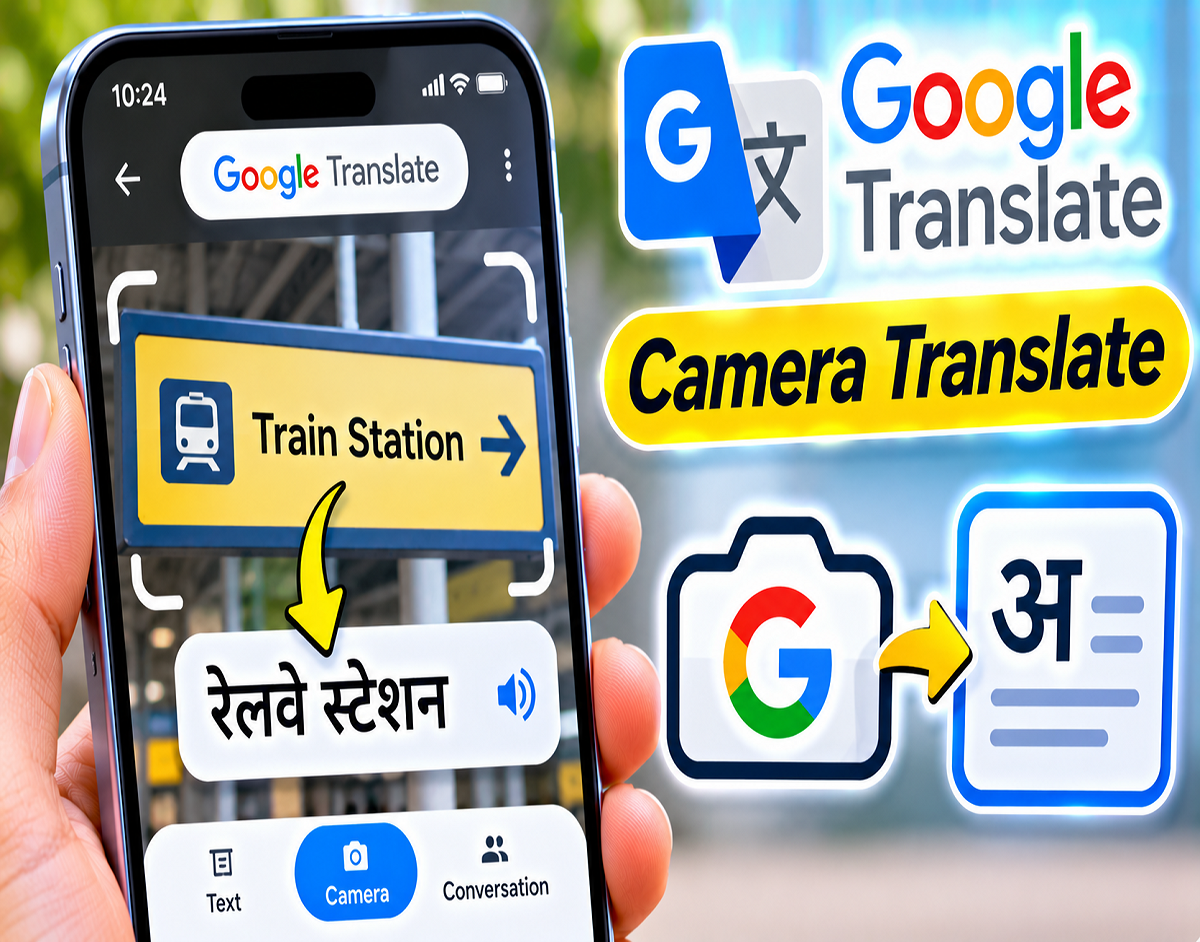
Google Translate Camera Feature 2026: Reading text written in an unfamiliar language no longer requires typing every word into a translation application. Google Translate offers a camera feature that allows smartphone users to translate printed text simply by pointing their phone's camera at it.
Whether you are travelling abroad, reading a restaurant menu, checking product packaging or trying to understand a foreign-language notice, the feature can display translated text directly on your phone.
Available on Android and iPhone, Google Translate also supports translation from saved photographs and offline translation for selected languages.
According to a Gadgets Now report, these capabilities can be particularly useful for travellers, students and people who regularly encounter information written in unfamiliar languages.
What Is the Google Translate Camera Feature?
Google Translate's camera feature uses image recognition and machine translation to identify written text and display it in a selected language.
For example, if you encounter a road sign written in French, you can point your smartphone camera at the sign and translate the text into Hindi or English.
The same process can help you understand foreign-language menus, product labels, notices and printed documents.
However, translation quality depends on the clarity of the text, language support and the complexity of the original content.
How to Translate Text Using Your Android Phone Camera
Android users can access camera translation through the Google Translate application.
If the app is not installed, download it from the Google Play Store.
Follow these steps:
- Open Google Translate on your Android smartphone.
- Select the language of the original text.
- Choose Hindi, English or another supported target language.
- If you do not know the original language, select Detect Language, where available.
- Tap the Camera icon.
- Point your phone's camera at the text you want to translate.
- Wait for the application to recognize the words.
- View the translated text displayed on the screen.
- Use the shutter or capture option, where available, to freeze the image for easier reading.
Depending on the application version, you may also be able to select, copy or share the recognized text.
How to Use Google Translate Camera on iPhone
The camera translation feature is also available to iPhone users through the Google Translate application.
The process is similar to Android, although some interface elements may differ.
Step-by-step guide:
- Download Google Translate from the Apple App Store if necessary.
- Open the application.
- Choose the original language or an available automatic detection option.
- Select the language into which you want the text translated.
- Tap the Camera icon.
- Position the camera in front of the printed text.
- Allow the app to recognize and translate the words.
- Capture the image if you want to examine the translation more closely.
You can change the target language whenever you need a different translation.
How to Translate Text From a Saved Photo
Google Translate is not limited to live camera translation.
It can also recognize and translate text from images already stored on your phone.
This is useful when someone sends you a photograph of a notice, product label or document through WhatsApp or another messaging application.
To translate a saved image:
- Open the Google Translate application.
- Tap Camera.
- Select the gallery or image import option.
- Choose the photograph containing the text.
- Wait for the application to recognize the words.
- Review the translated content.
- Select a particular section if the interface supports it.
This allows users to translate existing images without taking another photograph.
Can Google Translate Camera Work Without Internet?
Google Translate supports offline translation for selected languages and features.
However, users may need to download the relevant language packs before using the service without an internet connection.
How to prepare for offline translation:
- Open Google Translate.
- Access the language selection menu.
- Find the language you want to use.
- Tap the download icon if one is available.
- Download any additional required language pack.
- Check whether offline camera translation is supported for your chosen language pair.
Not every language or camera translation function is necessarily available offline.
If you are planning an international trip, test the feature before travelling to an area with limited connectivity.
What Can You Translate Using Google Translate Camera?
The feature can help with several everyday tasks.
| Type of Text | Practical Use |
|---|---|
| Restaurant menus | Understand food names and descriptions |
| Road signs | Read directions and general information |
| Product packaging | Understand labels and instructions |
| Books and study notes | Translate printed educational material |
| Public notices | Understand announcements |
| Photos and screenshots | Translate text from saved images |
| General documents | Obtain an initial understanding of unfamiliar text |
For legal, medical or safety-critical information, machine translation should be treated as an initial aid rather than a definitive interpretation.
Google Translate Camera Not Working? Try These Fixes
Sometimes the application may struggle to recognize text or display an accurate translation.
Common reasons include poor lighting, blurry photographs, unusual fonts or incorrect language selection.
| Problem | Possible Solution |
|---|---|
| Camera cannot recognize text | Move closer and keep the phone steady |
| Translation appears incorrect | Check the original language selection |
| Image is too dark | Improve lighting |
| Text appears blurry | Adjust the camera angle and focus |
| Offline translation fails | Check whether the required language packs are installed |
| Small letters are difficult to read | Capture a clearer image and zoom in |
You can also check whether an updated version of Google Translate is available.
What Is Detect Language in Google Translate?
The Detect Language option helps when you do not know which language appears in a photograph or on a sign.
Instead of manually choosing the original language, you can allow Google Translate to attempt identification.
The application then translates the recognized text into your selected target language.
However, automatic language detection can be inaccurate when the text is short, unclear or written in similar-looking languages.
If the result appears incorrect, manually select the original language and try again.
Can You Copy Text From a Photograph?
Google Translate may allow users to select and copy recognized text from an image.
This can be useful when you want to save translated information, share it with someone or paste it into another application.
The availability of copying and sharing options may vary by device and application version.
Text recognition is generally more reliable when the photograph is clear and the words are easy to distinguish.
Important Limitations of Camera Translation
Although camera translation is convenient, it does not guarantee complete accuracy.
Handwritten text, decorative fonts, technical terminology and poorly photographed documents can lead to errors.
Extra caution is necessary when translating medicine instructions, allergy warnings, legal documents or safety notices.
For important decisions, confirm the meaning with a qualified professional or reliable translator.
Users should also consider privacy before importing photographs containing confidential personal or business information into an online translation service.
Who Can Benefit From Google Translate Camera?
The feature is useful for people who regularly encounter text in unfamiliar languages.
Travellers can use it to understand signs, menus and general instructions in another country.
Students may use it to obtain an initial understanding of printed notes or educational material.
Online shoppers can translate information printed on imported products, while other users can read notices or messages shared as photographs.
The biggest advantage is convenience: users can understand many types of printed text without manually entering every word.
Conclusion
Google Translate's camera feature provides Android and iPhone users with a convenient way to translate text from signs, menus, books, packaging and photographs.
It also supports translation from saved images, while selected languages can be used offline after downloading the necessary language packs.
However, results depend on image quality, language support and the nature of the text.
For everyday information, camera translation can save time. For important medical, legal or safety-related content, always verify the translation before relying on it.