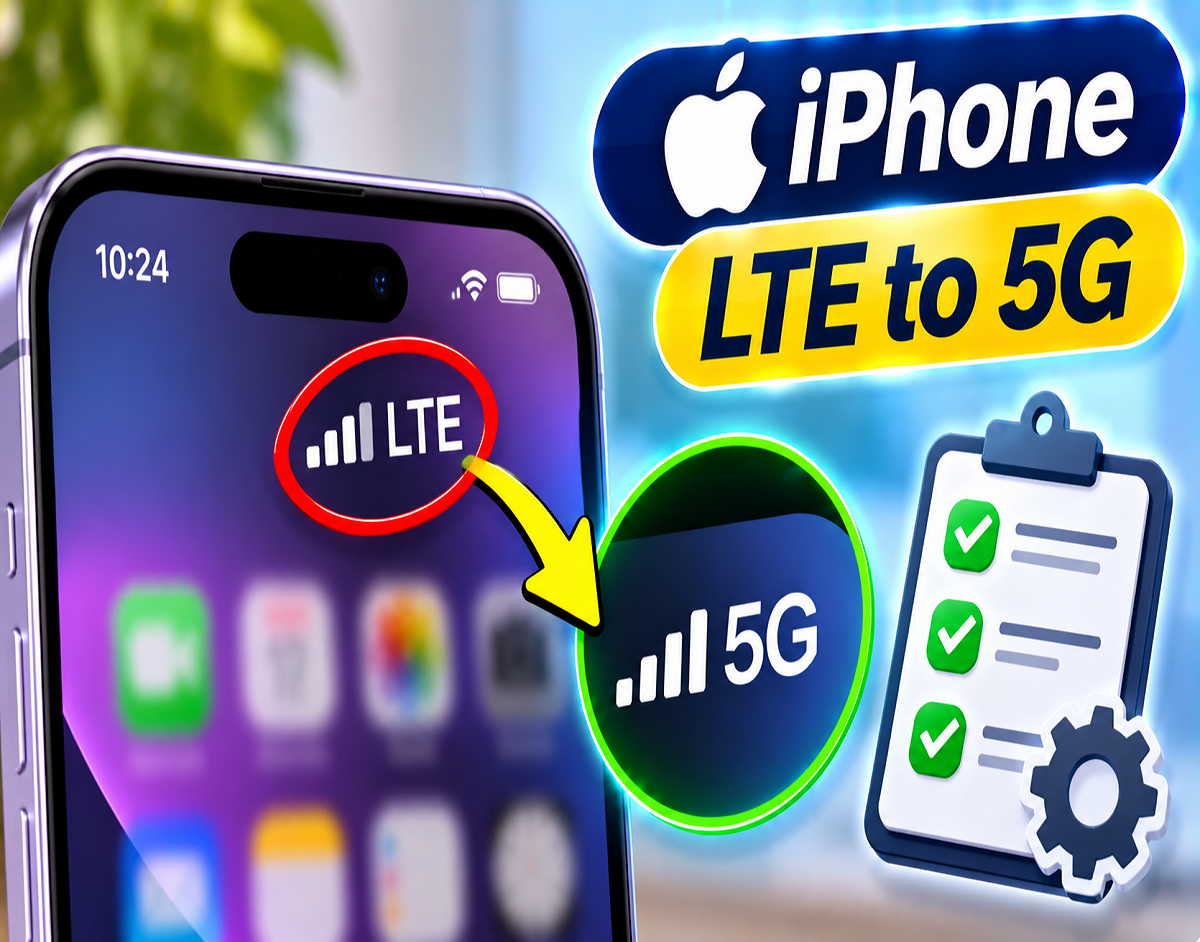
iPhone 5G Network Problem 2026: Is your iPhone displaying LTE instead of 5G, even though you have a 5G-compatible device? This does not necessarily mean something is wrong with your phone. Network coverage, mobile data settings, carrier restrictions and temporary connectivity problems can all cause an iPhone to switch from 5G to LTE.
Apple's 5G-compatible iPhones can automatically switch between network technologies depending on signal availability and battery efficiency. When the 5G Auto setting is enabled, the device may use LTE if 5G does not offer a noticeable improvement in performance.
However, if your iPhone previously connected to 5G in the same location but now consistently displays LTE, there are several troubleshooting steps worth trying.
Here are seven ways to check and potentially restore 5G connectivity on your iPhone.
Why Does Your iPhone Show LTE Instead of 5G?
When LTE appears in your iPhone's status bar, it means the device is connected to an LTE mobile network rather than 5G.
This can happen for several reasons, including weak 5G coverage, an incompatible mobile plan, network congestion or incorrect cellular settings.
Your iPhone may also switch to LTE automatically to conserve battery power.
Before changing advanced settings, check whether 5G is available in your area and supported by your mobile operator.
1. Check Whether 5G Is Enabled on Your iPhone
The first step is to review your cellular network preferences.
Open:
Settings > Cellular > Cellular Data Options > Voice & Data
Depending on your region, the menu may appear as Mobile Data or Mobile Service instead of Cellular.
On supported devices and plans, you may see these options:
| Network Setting | What It Does |
|---|---|
| 5G Auto | Automatically switches between 5G and LTE based on performance and battery considerations |
| 5G On | Uses 5G whenever it is available |
| LTE | Uses LTE even when 5G may be available |
If LTE is selected, switch to 5G Auto or 5G On.
For everyday use, 5G Auto is generally a practical choice because it balances network performance and battery efficiency.
Selecting 5G On may increase battery consumption in some situations.
2. Verify Your 5G Plan and Network Coverage
Owning a 5G-compatible iPhone does not automatically guarantee access to a 5G network.
Your mobile operator must support 5G, your plan must be eligible and 5G coverage must be available at your location.
For example, 5G signals may be weaker inside buildings, basements or areas far from network towers.
Try moving to an open area and checking whether the network indicator changes.
If 5G works elsewhere but not at your current location, the issue may be related to local coverage rather than your iPhone.
You can also use your telecom operator's official application or customer support service to confirm whether your connection is eligible for 5G.
3. Turn Airplane Mode On and Off
Airplane Mode can help resolve temporary mobile network connection problems.
Enabling it disconnects the phone from cellular networks. Turning it off allows the device to reconnect.
Follow these steps:
- Open Control Center or Settings.
- Turn on Airplane Mode.
- Wait approximately 15 seconds.
- Turn Airplane Mode off.
- Allow your iPhone to reconnect to the mobile network.
- Check whether 5G appears in the status bar.
This method may help when the phone is experiencing a temporary network registration problem.
However, it cannot fix unavailable 5G coverage or an ineligible mobile plan.
4. Restart Your iPhone
If toggling Airplane Mode does not help, restart your iPhone.
A restart can sometimes resolve temporary software glitches affecting mobile connectivity.
Turn off the device using its normal shutdown procedure, wait briefly and switch it back on.
After restarting, allow the phone time to reconnect to your mobile operator.
Then check whether the network indicator displays 5G.
Restarting is a basic troubleshooting measure and does not delete your personal data.
5. Check for Carrier Settings Updates
Carrier settings help your iPhone connect to your mobile operator's network.
These settings can include changes related to network connectivity and supported services.
If you recently changed your SIM card, activated an eSIM or switched operators, checking for a carrier settings update may be useful.
How to check:
- Open Settings.
- Tap General.
- Select About.
- Wait a few seconds.
If a carrier settings update is available, your iPhone may display a prompt asking you to install it.
Follow the on-screen instructions and check the network connection afterward.
6. Update Your iPhone to the Latest Available iOS Version
Software updates may include bug fixes and improvements that affect mobile network connectivity.
If your iPhone is running an older iOS version, check whether an update is available.
Settings > General > Software Update
Before installing an update, back up important data and ensure the device has sufficient battery power and a stable internet connection.
Once the update is complete, check the network indicator again.
An iOS update may resolve certain software-related issues, but it cannot guarantee 5G connectivity where the operator's network is unavailable.
7. Reset Network Settings as a Last Resort
If the previous methods do not work, resetting network settings may help resolve persistent configuration problems.
However, this should be considered only after checking the simpler solutions.
Follow this path:
Settings > General > Transfer or Reset iPhone > Reset > Reset Network Settings
This process does not erase your photos, applications or other ordinary personal content.
However, it resets network-related preferences, including saved Wi-Fi networks and passwords, and may affect certain VPN or APN settings.
Make sure you have the necessary Wi-Fi passwords and network configuration details before proceeding.
After the reset, reconnect to the network and check whether 5G is available.
What If Your iPhone Still Shows LTE?
If your iPhone supports 5G, your plan is eligible and your location has 5G coverage, but the device continues to display LTE, contact your mobile operator.
Ask customer support to check whether:
- 5G service is active on your mobile number.
- Your prepaid or postpaid plan supports 5G.
- A network outage is affecting your location.
- Your SIM or eSIM is correctly provisioned.
- Any account restrictions are preventing access to 5G.
If the problem originates from the telecom network, changing your iPhone settings may not resolve it.
If the operator confirms that the connection is working correctly, Apple Support can help investigate a possible device-related issue.
Is LTE Safe to Use Instead of 5G?
Yes. LTE is an established mobile network technology, and seeing LTE instead of 5G does not automatically indicate a security issue or hardware failure.
LTE can support browsing, messaging, video calls, streaming and many other online activities.
Although 5G can provide higher speeds and lower latency, actual performance depends on coverage, network congestion and signal quality.
In some circumstances, a strong LTE connection may perform better than a weak 5G connection.
5G Auto vs 5G On: Which Setting Should You Choose?
For most everyday users, 5G Auto is a sensible option.
It allows the iPhone to use 5G when beneficial while switching to LTE when appropriate.
5G On can be useful when checking whether 5G is available in a particular area.
However, enabling 5G On does not force the phone to connect to a 5G network that is unavailable or unsupported by the mobile operator.
Conclusion
If your iPhone displays LTE instead of 5G, there is no immediate reason to assume the device is faulty.
The problem may be related to cellular settings, network coverage, carrier configuration or temporary software issues.
Start by checking the Voice & Data settings and confirming your 5G plan eligibility. Next, try Airplane Mode, restarting the device and checking for carrier settings or iOS updates.
If the issue persists, consider resetting network settings or contacting your telecom operator.
Remember: 5G connectivity depends on your device, mobile plan and network coverage. Changing a setting alone cannot guarantee a 5G connection.