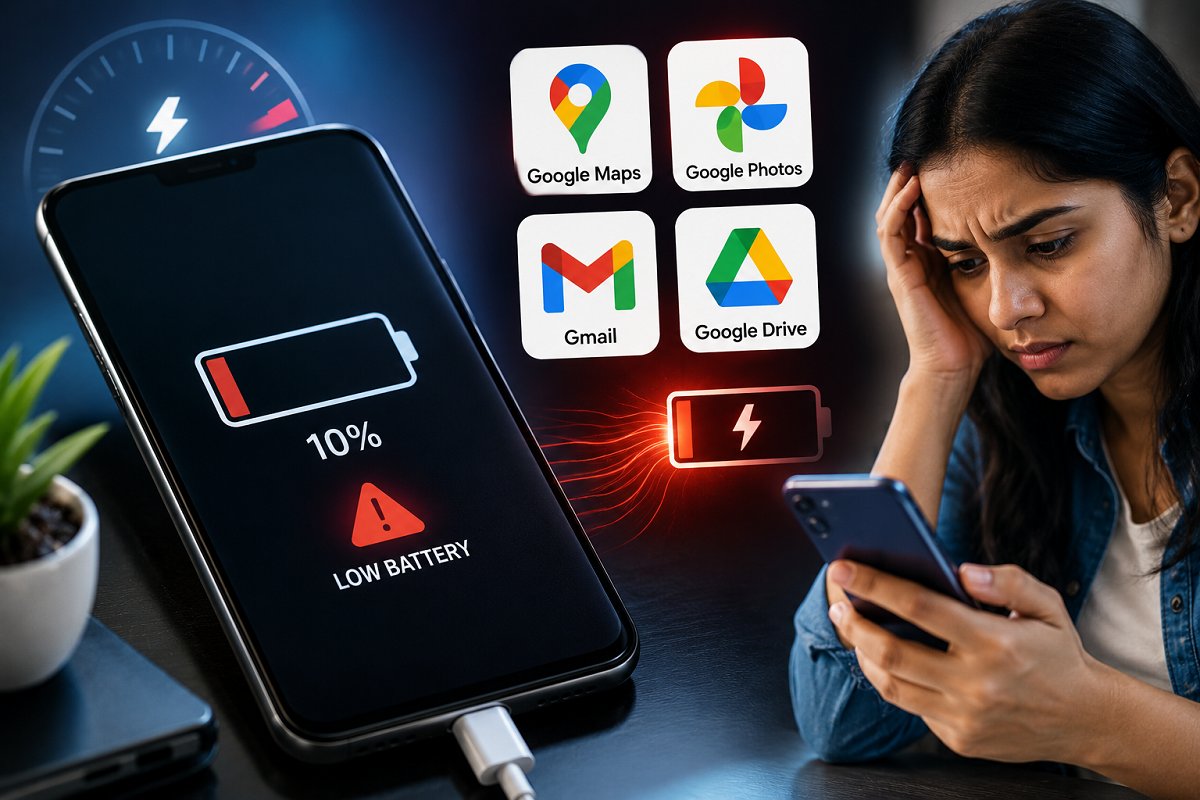
Smartphone Battery Drain: If your smartphone's battery is running out much faster than usual, the problem may not always be an aging battery. In many cases, certain apps running continuously in the background can significantly increase power consumption. Among the biggest contributors are some of Google's most widely used applications, which frequently perform background tasks such as location tracking, cloud syncing, data refresh, and email synchronization.
Whether you use an Android phone or an iPhone, understanding how these apps consume battery can help you extend your device's battery life.
Why Does Smartphone Battery Drain Quickly?
Many smartphone users assume that rapid battery drain is a sign of hardware failure. However, background activities performed by installed applications often play a major role.
Apps that constantly use GPS, internet connectivity, cloud services, and processor resources continue running even when you're not actively using them. This places additional load on the CPU, RAM, and battery, resulting in shorter battery life throughout the day.
Here are four Google apps that are known for consuming more battery than many users realize.
1. Google Maps
Google Maps is one of the most useful navigation apps, but it can also be among the biggest battery consumers.
Why It Uses More Battery
- Continuously accesses GPS and location services.
- Refreshes real-time navigation and traffic information.
- Tracks movement while navigation is active.
- Frequently communicates with online map servers.
Since GPS is one of the most power-intensive features on a smartphone, prolonged use of Google Maps can noticeably reduce battery life.
How to Reduce Battery Usage
- Turn off location services when navigation is not required.
- Allow location access only while using the app.
- Close navigation after reaching your destination.
2. Google Photos
Google Photos automatically backs up photos and videos to cloud storage, making it convenient for preserving memories. However, this feature can also increase battery usage.
Why It Uses More Battery
- Uploads newly captured photos and videos automatically.
- Performs continuous cloud synchronization.
- Uses Wi-Fi or mobile data in the background.
- Processes media files before uploading.
Large photo libraries and high-resolution videos can make the backup process more demanding, especially when charging is not available.
How to Reduce Battery Usage
- Disable automatic backup when not needed.
- Restrict uploads to Wi-Fi only.
- Pause backups while traveling or when battery is low.
3. Google Chrome
Google Chrome remains one of the world's most popular web browsers, but it can also be resource-intensive.
Why It Uses More Battery
- Multiple open tabs continue refreshing content.
- Graphic-heavy websites consume more processing power.
- Background scripts and advertisements remain active.
- High RAM usage increases overall power consumption.
Keeping dozens of browser tabs open can significantly affect battery performance.
How to Reduce Battery Usage
- Close tabs you no longer need.
- Avoid leaving video or media-heavy websites open.
- Enable Chrome's battery-saving features if available.
4. Gmail
Gmail continuously checks for incoming emails to ensure users receive notifications almost instantly.
Why It Uses More Battery
- Regularly synchronizes email accounts.
- Maintains an internet connection for real-time updates.
- Processes notifications in the background.
- Uses processor resources to refresh messages automatically.
Although each sync consumes only a small amount of power, repeated background activity throughout the day can contribute to noticeable battery drain.
How to Reduce Battery Usage
- Increase email sync intervals where possible.
- Disable automatic sync for accounts you rarely use.
- Turn off notifications for less important email accounts.
Additional Tips to Improve Battery Life
Apart from managing these apps, users can extend smartphone battery life by following a few simple practices:
- Reduce screen brightness or enable adaptive brightness.
- Turn off Bluetooth and GPS when not in use.
- Use Battery Saver or Low Power Mode.
- Keep apps updated to benefit from performance improvements.
- Remove or restrict apps that frequently run in the background.
- Restart your phone occasionally to clear unnecessary background processes.
When Should You Worry?
If your phone continues losing battery rapidly even after limiting background activity, the issue could be related to:
- An aging battery
- Faulty charging habits
- Software bugs
- Excessive overheating
- Hardware problems
In such cases, checking battery health or consulting an authorized service center may help identify the underlying issue.
Final Take
A fast-draining smartphone battery doesn't always mean it's time to replace your device. In many situations, background processes from apps like Google Maps, Google Photos, Google Chrome, and Gmail can significantly increase power consumption. Reviewing app permissions, limiting background activity, and adjusting synchronization settings can help improve battery life without affecting your overall smartphone experience.
By making a few simple changes, users can often extend battery backup and reduce the need for frequent charging throughout the day.